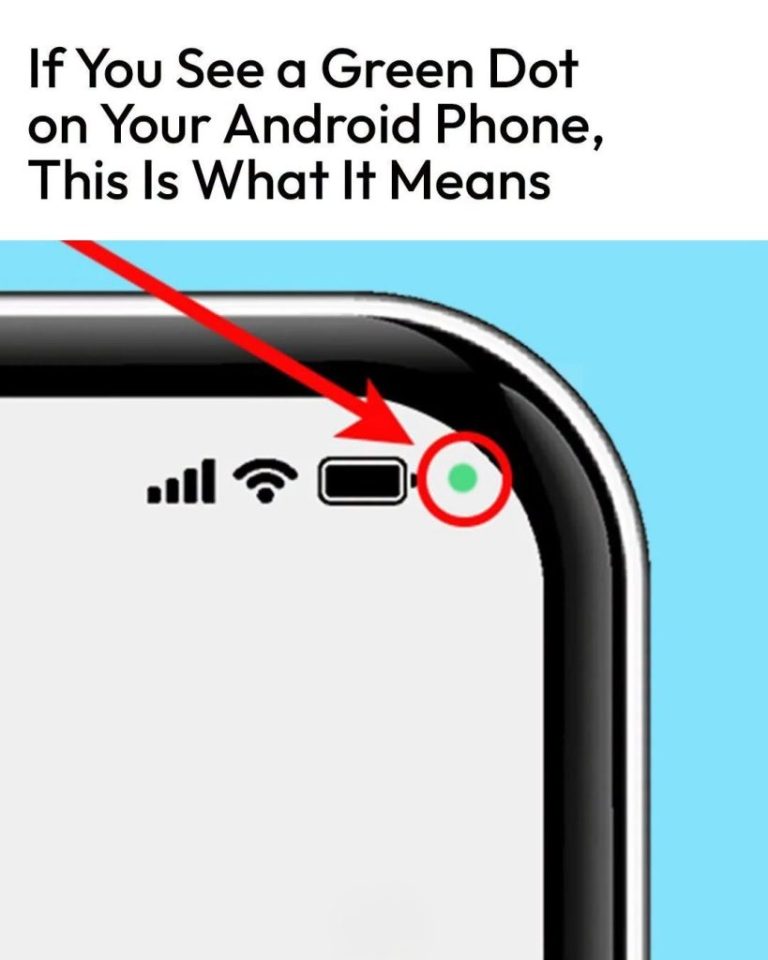
1. Camera or Microphone Usage
The green dot on your Android device signals active use of your camera or microphone by an app. This indicator is an essential privacy feature introduced to alert you whenever these sensitive sensors are engaged, giving you real-time awareness of their use.
When the green dot appears, it means an app is currently capturing video, taking photos, or recording audio. The dot is typically located near the status bar and remains visible as long as the camera or microphone is being accessed. Once the app stops using these components, the indicator disappears, ensuring you know exactly when your device’s sensors are in operation.
2. Legitimate App Use
Seeing the green dot is normal and expected during legitimate activities that require camera or microphone access. Common examples include:
- Video conferencing apps: Platforms like Google Meet, Zoom, or WhatsApp engage your camera and microphone for live video calls.
- Camera applications: Opening your phone’s default camera or third-party camera apps will activate the green dot as the camera is in use.
- Voice recording tools: Audio recorders that capture sound trigger the green dot during recording sessions.
- Voice assistant and navigation apps: When using voice commands or navigation systems that listen for speech, the microphone is active and indicated by the green dot.
- Social media and messaging apps: Apps like Instagram or Snapchat access your camera or microphone for capturing photos, videos, or audio messages.
In these scenarios, the green dot confirms your intended app is accessing hardware components as expected, so no further action is needed.
3. Unexpected App Access
If the green dot appears when you are not actively using an app that should require camera or microphone access, this may indicate unauthorized usage. Some apps might run background processes or have permissions that allow them to access your sensors without your explicit knowledge.
Unexpected access can result from several causes:
- Apps granted broad permissions during installation or updates that do not align with their primary functions.
- Malicious software or spyware designed to record audio or video covertly.
- Software glitches or bugs causing unintended hardware use.
To protect your privacy, regularly review app permissions by navigating to your device’s settings under Privacy > Permission manager. Revoke camera and microphone permissions for any app you do not trust or recognize. Additionally, monitor for unusual phone behaviors such as excessive battery drain, overheating, or spikes in data usage, which can signal unauthorized activity.